
How Radiologists Review the Same Imaging Study on Mac, iPhone and iPad
To continue reviewing a scan on another device, you need the DICOM images and the context of your open view. See where Falcon Cloud, Apple Handoff and Falcon Link fit.
In this article
What follows an imaging study across devices?
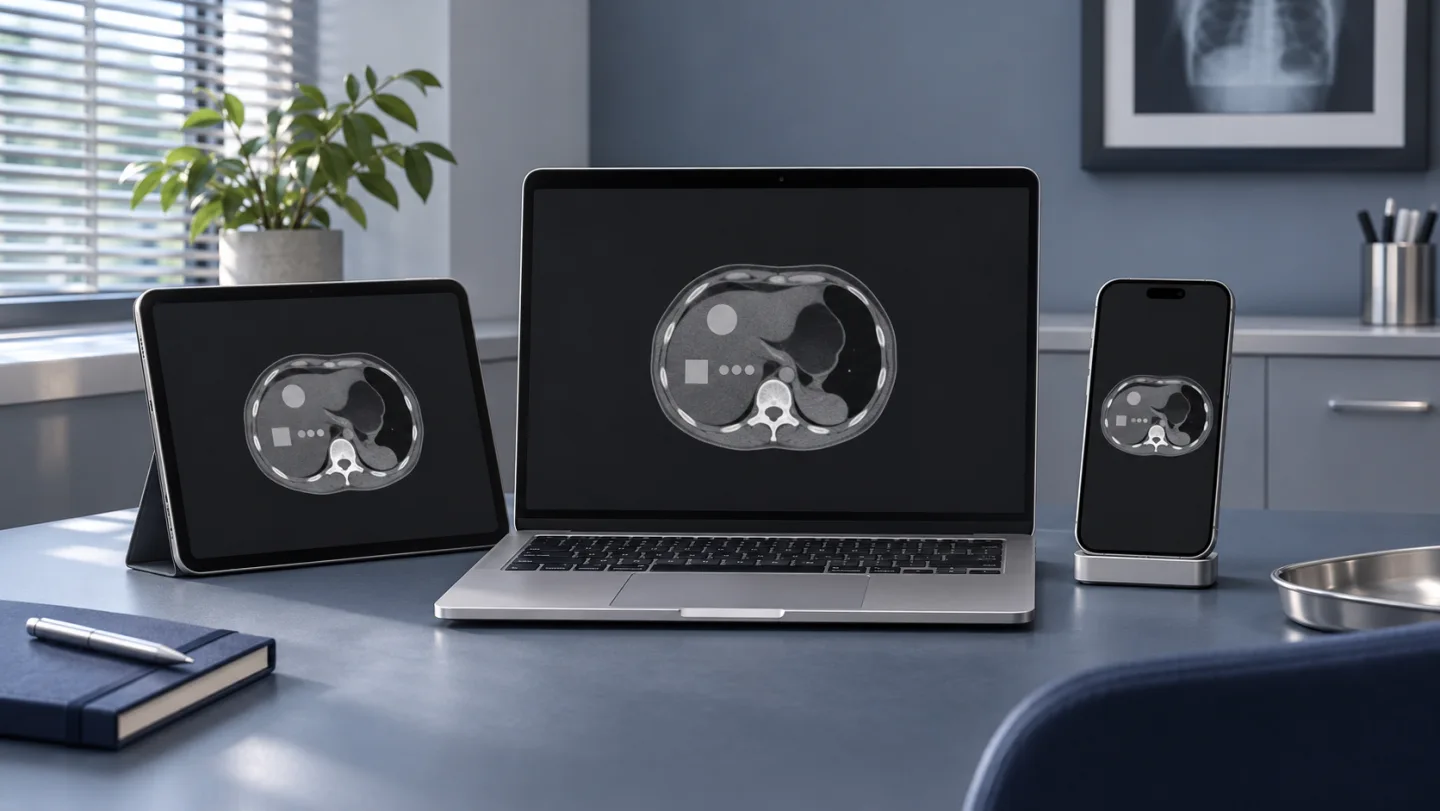
A clinician can review the same DICOM study on different devices when each device can access the relevant images. Continuing an open review also takes viewer context, such as which series and slice were on screen and which window settings were applied. These details matter when the clinician wants to return to the exact area they were inspecting.[1]
For example, a study may contain several CT series that look similar in the study list. The reader might have selected a thin axial series, reached a specific slice and adjusted the window. Opening the study on a second device brings back the exam. Resuming the active view can bring back the particular slice and display settings as well.
Open a stored DICOM study with Falcon Cloud
Falcon Cloud gives authorised users a way to store and retrieve DICOM studies. A reader can upload selected studies or series from Falcon MD, then sign in on another supported device, find the exam by details such as date or modality and download the images into that device’s local library. When a local study already includes some of the DICOM instances, the retrieval workflow can request missing instances.[2][3]
This is useful when a clinician needs to access a stored study later, including when the original device is elsewhere. Confirm that the expected series are available before starting the review. Explore study storage and retrieval with Falcon Cloud.
Resume an open Falcon MD review with Apple Handoff
Apple Handoff lets a person continue a supported app activity on a nearby Apple device signed in to the same Apple Account. In Falcon MD, the activity carries the selected image, window settings and viewing mode. If the study is already on the receiving device, the app can reopen the view using those details. If the images are missing, Falcon MD can offer to request the active series or the whole study from the originating device.[4][5]
To see the difference in a teaching session, open a de-identified case and adjust the window on one slice. Continue the review through Handoff on a supported nearby device and check which slice, window and viewing mode resume.
Send a study to a colleague with Falcon Link
When a study needs to reach another clinician, the sender can address a DICOM transfer to that recipient through Falcon Link or email. A recipient using Falcon MD can choose to download and import the study. For example, a clinician who needs a colleague’s input can send the relevant images so the colleague can scroll through the series and adjust the display in their own viewer.[6]
See the recipient workflow in Falcon Link.
Choose the device for the clinical task
For clinical use, the hardware, display and viewing conditions need to suit the task. Falcon MD has separate FDA clearances for Mac and for iPhone and iPad. The U.S. mobile labelling limits use to situations without access to a full workstation. Both clearances exclude mammography. Check the applicable instructions for use before choosing a device for clinical interpretation.[7][8]
When evaluating a DICOM viewer for Mac, iPhone and iPad, try the same de-identified study on your supported devices. Check how easily you can find the exam, reopen the relevant view and get a study to a colleague. Explore Falcon MD for Mac, iPhone and iPad.
References
Sources cited in this article
- [1]DICOM PS3.3, Composite Information Object Definitions
DICOM Standard
- [2]DICOM PS3.18, Web Services
DICOM Standard
- [3]Falcon Cloud for Medical Imaging
iCat Solutions
- [4]
- [5]Falcon MD DICOM Viewer and Release History
iCat Solutions on the App Store
- [6]Falcon Link Medical Image Sharing
iCat Solutions
- [7]510(k) K232589, Horos MD Indications for Use
U.S. Food and Drug Administration
- [8]510(k) K242552, Horos Mobile Indications for Use
U.S. Food and Drug Administration