
Apple’s Studio Display XDR Brings DICOM Calibration to the Mac: Implications for Falcon MD Workflows
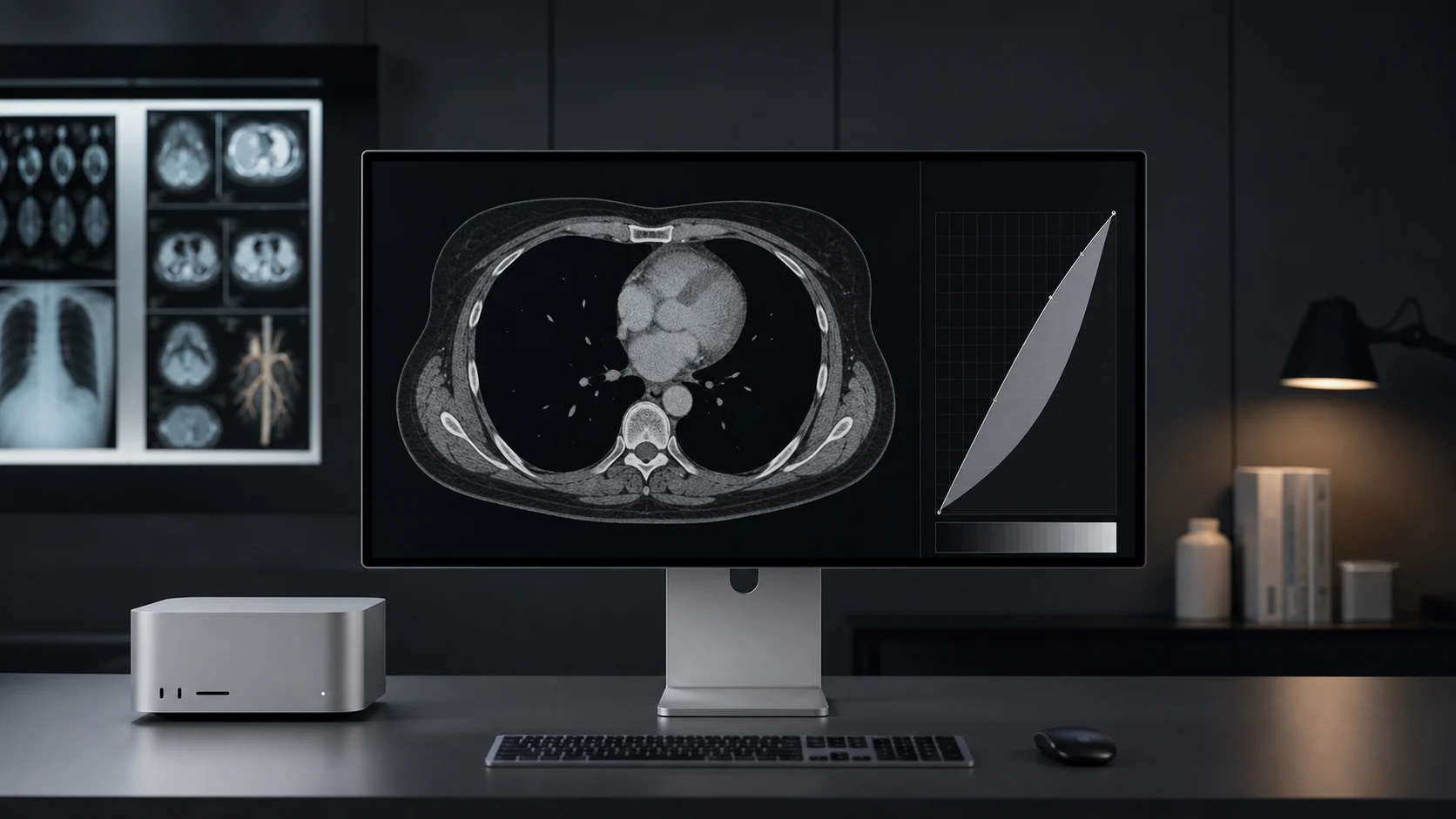
Apple’s Studio Display XDR introduces a regulated, operating-system-level calibration workflow for general radiology. For organisations evaluating a Falcon MD workstation, the significance is not a simple compatibility claim. It is the possibility of combining a calibrated display, an FDA-cleared DICOM viewer, validated connectivity and a documented quality-assurance process within the Mac ecosystem.
In this article
A meaningful change for Mac-based radiology
Apple announced Studio Display XDR on 3 March 2026 with new medical-imaging reference modes intended for diagnostic radiology. On 1 April 2026, the US Food and Drug Administration recorded Apple’s Medical Imaging Calibration Feature, or MICF, as substantially equivalent under 510(k) K253582 and classified it as calibration software for radiology displays. As of 23 July 2026, Apple states that the feature is available only in the United States and US territories, using Studio Display XDR with compatible firmware and macOS 26.4 or later.[1][2][3]
This matters because the medical use of a display is not established by brightness, resolution or a labelled preset alone. Apple’s instructions describe MICF as a software-only medical device for calibrating a compatible general-purpose desktop display so that trained practitioners can use it for primary diagnostic interpretation and medical-image review. The labelled use requires specific Apple display and macOS platforms and excludes mammography.[4]
What DICOM calibration actually does
DICOM Part 14 defines the Grayscale Standard Display Function, or GSDF, to support more consistent presentation of grayscale images across display systems. It maps image-presentation values to luminance using a standardised function informed by the non-linear contrast sensitivity of human vision. In practical terms, calibration is intended to make changes in grayscale more consistently perceptible across a display’s usable luminance range.[5]
Studio Display XDR provides DICOM-350 and DICOM-600 reference modes. Apple states that these modes use the DICOM GSDF, account for reflected ambient light and disable local dimming to favour uniformity and avoid blooming. The calibration process requires a compatible external colorimeter, an appropriate viewing environment, a warm-up period and a successful calibration result. Apple currently recommends ambient illumination of approximately 25 lux and at least 40 minutes of display warm-up before calibration.[3][4][6]
Apple’s instructions also require the user to confirm that calibration tests have passed and to save the resulting report within the facility’s quality-assurance programme. These requirements are significant. A display preset is a starting configuration; calibration measures the actual display response and corrects it against defined targets. Quality control then provides continuing evidence that the display remains suitable after ageing, environmental change, servicing or software updates. AAPM guidance similarly treats display performance as a managed quality-assurance activity rather than a one-time purchasing specification.[4][7]
The display and the DICOM viewer have different responsibilities
A calibrated display controls how digital image values are rendered as visible luminance. A DICOM viewer performs a different set of functions: reading and processing DICOM objects, applying window and level operations, presenting multiplanar or three-dimensional views, supporting measurements and annotations, and communicating with PACS and other imaging systems. A defensible workstation therefore depends on both layers, together with the host computer, network, room conditions and local operating procedures.[5][8][9][10]
Falcon MD’s desktop software is FDA-cleared under 510(k) K232589. The FDA record uses the clearance name Horos MD, while Falcon’s compliance documentation identifies Falcon MD as the current trade name. Its labelled intended use covers viewing images from CT, CR, MR, ultrasound and other DICOM-compliant systems as a diagnostic and review tool for trained healthcare professionals. The labelling excludes mammography and makes the user responsible for ensuring that display quality, ambient light and image-compression settings are appropriate to the clinical application.[8][9]
Falcon also publishes a DICOM Conformance Statement. Revision 1.1, dated 30 January 2026, documents conventional DICOM storage and query/retrieve services as well as DICOMweb services including QIDO-RS, WADO-RS and STOW-RS. This documentation is useful for integration planning, but it should not be mistaken for automatic interoperability. The DICOM standard states explicitly that a conformance statement supports an initial comparison between systems and does not replace validation with the actual equipment used by the healthcare facility.[10][11]
What this means for a Falcon MD deployment
At an architectural level, Apple’s display workflow and Falcon MD address complementary functions: one concerns calibrated image presentation, while the other concerns DICOM viewing, processing and communication. However, the available public labelling should not be interpreted as a joint certification of every possible Falcon–Apple configuration. Apple requires its calibrated display to be paired with a compatible DICOM viewer, while Falcon’s labelling retains user responsibility for display conditions and the overall clinical setup.[3][4][8][9]
A practical deployment should therefore include five controls.
- Define the intended use and jurisdiction. Confirm that the exact display feature, Falcon MD version, platform and clinical use are permitted in the country of deployment. Apple’s calibration feature is currently labelled as available in the United States, and neither Apple MICF nor Falcon MD is labelled for mammography.[3][4][8][9]
- Establish a controlled configuration. Record the Mac model, macOS version, display firmware, Falcon MD version, colorimeter and PACS endpoints. Changes to these components should be assessed through the organisation’s quality and change-control processes. Apple’s current MICF platform requirements specify Studio Display XDR, an Apple-silicon Mac and macOS 26.4 or later.[3][4]
- Calibrate and document the display. Select the appropriate DICOM reference mode, control ambient light, allow the required warm-up period, complete calibration, confirm that all tests have passed and retain the calibration report within the facility’s quality-assurance records.[3][4]
- Validate the end-to-end imaging path. Test representative studies from each intended modality, relevant transfer syntaxes, windowing, measurements, image orientation, prior-study comparison, PACS query/retrieve, exports and expected failure conditions. Comparing conformance statements is a first step, but DICOM requires site-level interoperability testing with the actual systems.[10][11]
- Maintain ongoing quality control. Follow the facility’s quality-assurance programme for visual checks, objective testing, recalibration, software updates, incident handling and record retention. The testing frequency and acceptance criteria should be defined by the facility’s programme and applicable professional guidance.[4][7]
A new option, not a shortcut
Studio Display XDR expands the range of regulated calibration pathways available to Mac-based radiology, but it does not remove the need for system-level validation. An FDA 510(k) clearance is a finding of substantial equivalence for a defined intended use. It is not a general claim that one product is superior to all alternatives or suitable for every clinical environment.[12]
For Falcon MD users, the important development is therefore not a headline specification. It is the emergence of an integrated calibration pathway on supported Apple hardware that can be incorporated into a documented radiology quality system. When the display, viewer, connectivity and environment are evaluated together, the Mac can form part of a disciplined diagnostic-imaging workflow. When any one of those elements is assumed rather than verified, the presence of a DICOM preset alone is not enough.
References
Sources cited in this article
- [1]
- [2]
- [3]
- [4]
- [5]
- [6]
- [7]
- [8]
- [9]
- [10]
- [11]
- [12]